Learn about Simi
Group Chats
The Group Chats section allows multiple AI agents to collaborate in a single conversation, making it easier to compare perspectives, solve complex problems, and generate more comprehensive responses.
Watch the video above to see the Group Chats section in action and learn more about how it works.
Creating a Group Chat
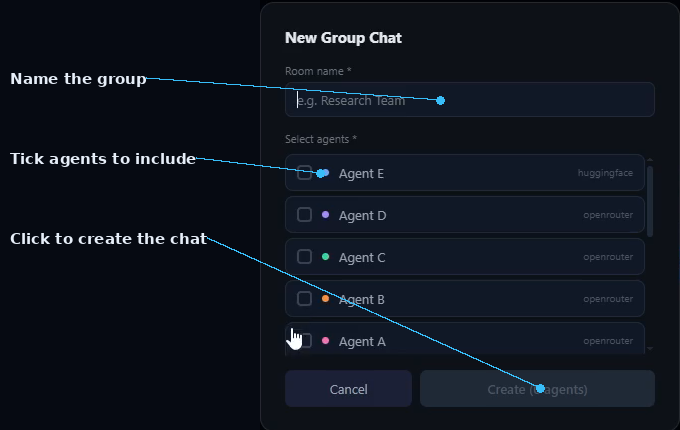
- Click + New Group Chat.
- A pop-up window will appear.
- Enter a name for the group (for example, Health).
- Select the agents you want to include by ticking their checkboxes.
- Click Create to start the group chat.
Sending a Message
- Type the message or question you want the agents to search, analyze, or discuss.
- Click Send to begin the conversation.
- All selected agents will receive the same prompt simultaneously.
AI Collaboration
- The selected agents immediately begin processing your request.
- Each agent analyzes the prompt using its own reasoning and configuration.
- Responses are generated with detailed explanations, insights, recommendations, and supporting information.
- Comparing multiple responses helps you gain a broader understanding of the topic and make better-informed decisions.
- This collaborative approach is especially useful for research, brainstorming, planning, problem-solving, and content creation.
Agent Discussion
- Click Discuss to allow the agents to continue talking with one another automatically.
- The discussion continues until the objective is achieved or the agents reach an agreement.
- Click Stop at any time to end the discussion if you have already received the information you need.
Reviewing the Results
- Review the generated responses to ensure they meet your requirements.
- Continue the discussion or ask follow-up questions if additional information is needed.
- Refine your prompt until you are satisfied with the final output.

Managing Agents
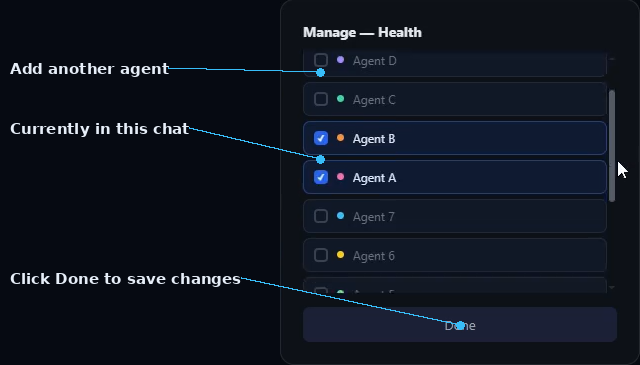
- Click Manage in the top-right corner.
- Add new agents to the conversation at any time.
- Remove agents that are no longer needed.
- Replace underperforming agents with others better suited to the task.
- This allows you to improve the quality and accuracy of the discussion while it is in progress.
Exporting Group Conversations
- Click Export next to the Manage button.
- A pop-up window displays all available export formats.
- Export the conversation in formats such as: PDF, CSV, HTML, TXT, Markdown, JSON, and other supported formats.
- The exported file is automatically saved to your Downloads folder.
Key Features
- Create collaborative AI group chats.
- Include multiple agents in a single conversation.
- Compare different AI perspectives and responses.
- Allow agents to discuss topics automatically.
- Add or remove agents during active conversations.
- Export complete group conversations in multiple formats.
- Improve research, brainstorming, planning, and decision-making through AI collaboration.
Start a Group Chat in SIMI
Follow the steps above to bring your agents together and put Group Chats to work.
Explore SIMI